http://mfcmapi.codeplex.com/
Use for check the e-mail information such as Outlook Conversation ID, Attachment
2016年2月23日 星期二
2016年2月22日 星期一
Disable Windows 10 Upgrade
1. Download a Tools
2. Run it
3. Click "Click to Disable 'Get Windows 10' App
4. Click "Click to Prevent Windows 10 Upgrades"
Remove or uninstall Language packs in Windows 10
If you wish to uninstall Language Packs, you may open a command
prompt windows, type the following and hit Enter.
Lpksetup /u
The Install or Uninstall display languages panel will open.
2015年11月13日 星期五
Domain Group Policy Deploy Printer for all client PC
First we should install the printer on Windows Server and share the printer
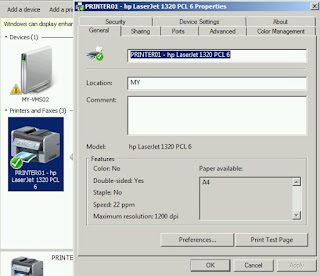
For good to management, you should plan the printer name and share name, if you have two hp Laserjet 1320 printer, every printer you should assign the name such as "PRINTER01" and "PRINTER02" for difference printer.
For Example : (If you not desire the good name, after your company grow and have a lot of printer, you will need to change back the name, it will make you crazy)
PRINTER01 - hp LaserJet 1320 PCL6
PRINTER01 - hp LaserJet (For Account Statement Format)
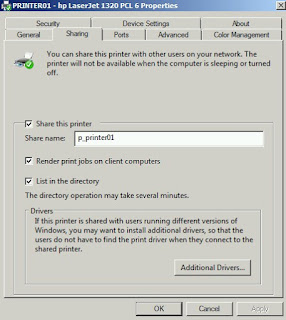
Click "Sharing", share name use p_printer01 for starting, other you can use p_printer01_a, etc...
(about the permission, here will not explain too much, please search on google)
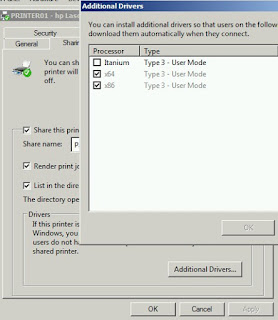
Remember Additional Drivers should installed x64 & x86 for difference OS
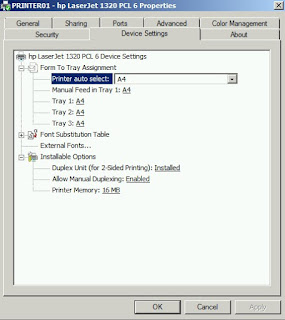
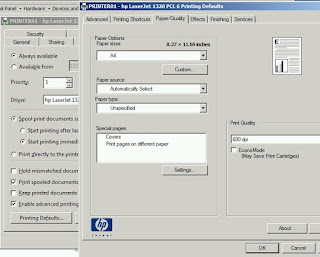
You should preset the printer before deploy it, once computer connected it will assign all setting.
Advanced page > Printing Defaults
-----------------------------------------
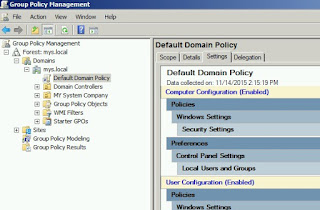
Open the Group Policy Management > Click "Default Domain Policy" > right hand side click "settings"
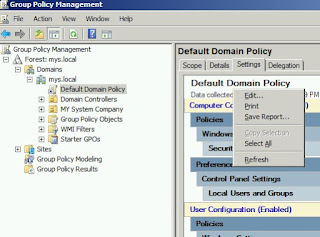
Right click mouse and click "Edit"
Here have two method to connect the printer, First is using Deploy Printer and Second is Connect to Printer
Method 1 : (Caution it will become many trouble if you change printer/share name)
Advantage
- Client can't delete the printer
Disadvantage
- If someone on server rename the printer/share name, change drive may cause client computer can't remove the deployed printer, if will hard to fix if you got a lot of client machine, so you should very understand what are you do on this method.
Under Group Policy > User Configuration > Windows Settings > Depolyed Printers > Click "Deploy Printer"
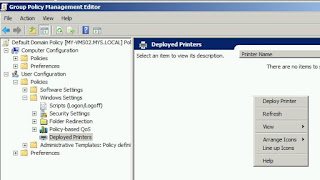
Type the link and add, then click "OK", after computer restart and login, it will connected and auto install the driver on client machine.
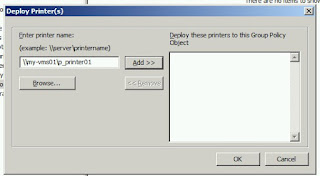
Remark :
- Client Computer should no right to remove deployed printer
- If you remove deployed printer on Policy, all client should automatically remove printer on client machine, the driver will still leave on client machine.
- If you need to change the printer/share name, you should create a new share printer and deploy a new printer, don't just change name on printer, it will loss connection.
- If printer is gone or replaced new printer, you can remove deployed printer on policy, but i suggest don't delete and change printer/share name, just leave here and keep at least a year to make sure all client machine is removed deployed printer.
Method 2 :
Advantage
- Easy to management, user allow to delete the printer
Disadvantage
- Client Machine can't get driver for server, so if your computer does not have same driver installed, the printer will not connect.
Under Group Policy > User Configuration > Preferences > Control Panel Settings > Printers > Right Click "New" > "Shared Printer"
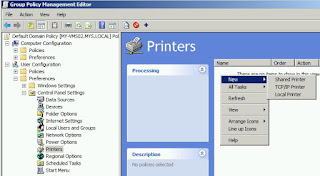
Action "Create", Type the Share name and OK
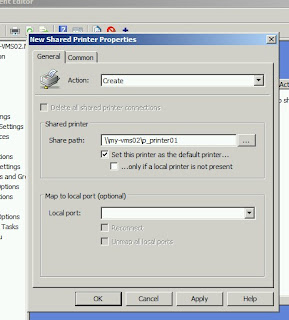
Remark :
- This is same as you type \\my-vms01\p_printer01 on CTRL+R, but it will always connect after login the computer even you delete the printer.
- You should already installed the printer driver on computer else it will not work and prompt the driver install screen.
For good to management, you should plan the printer name and share name, if you have two hp Laserjet 1320 printer, every printer you should assign the name such as "PRINTER01" and "PRINTER02" for difference printer.
For Example : (If you not desire the good name, after your company grow and have a lot of printer, you will need to change back the name, it will make you crazy)
PRINTER01 - hp LaserJet 1320 PCL6
PRINTER01 - hp LaserJet (For Account Statement Format)

Click "Sharing", share name use p_printer01 for starting, other you can use p_printer01_a, etc...
(about the permission, here will not explain too much, please search on google)

Remember Additional Drivers should installed x64 & x86 for difference OS

You should preset the printer before deploy it, once computer connected it will assign all setting.

Advanced page > Printing Defaults

-----------------------------------------
Open the Group Policy Management > Click "Default Domain Policy" > right hand side click "settings"

Right click mouse and click "Edit"

Here have two method to connect the printer, First is using Deploy Printer and Second is Connect to Printer
Method 1 : (Caution it will become many trouble if you change printer/share name)
Advantage
- Client can't delete the printer
Disadvantage
- If someone on server rename the printer/share name, change drive may cause client computer can't remove the deployed printer, if will hard to fix if you got a lot of client machine, so you should very understand what are you do on this method.
Under Group Policy > User Configuration > Windows Settings > Depolyed Printers > Click "Deploy Printer"

Type the link and add, then click "OK", after computer restart and login, it will connected and auto install the driver on client machine.

Remark :
- Client Computer should no right to remove deployed printer
- If you remove deployed printer on Policy, all client should automatically remove printer on client machine, the driver will still leave on client machine.
- If you need to change the printer/share name, you should create a new share printer and deploy a new printer, don't just change name on printer, it will loss connection.
- If printer is gone or replaced new printer, you can remove deployed printer on policy, but i suggest don't delete and change printer/share name, just leave here and keep at least a year to make sure all client machine is removed deployed printer.
Method 2 :
Advantage
- Easy to management, user allow to delete the printer
Disadvantage
- Client Machine can't get driver for server, so if your computer does not have same driver installed, the printer will not connect.
Under Group Policy > User Configuration > Preferences > Control Panel Settings > Printers > Right Click "New" > "Shared Printer"

Action "Create", Type the Share name and OK

- This is same as you type \\my-vms01\p_printer01 on CTRL+R, but it will always connect after login the computer even you delete the printer.
- You should already installed the printer driver on computer else it will not work and prompt the driver install screen.
2015年11月10日 星期二
File Replication Services Ntfrs Error / Domain can't sync SYSVOL
CAUSE :
- Already have Windows 2003 Domain Controller, add one Windows 2008 R2 and promo to Active Directory, Event show Ntfrs error can't sync SYSVOL.
- 新加入2008 R2的Domain Controller到2003 Domain Controller上,但發現SYSVOL無法同步,\\servername\ 沒有sysvol等資料夾
Resolution (The following action is same, but came from difference website, Point 3 will easy to understand)
1. https://social.technet.microsoft.com/Forums/windowsserver/en-US/5a4b3647-0641-4a1a-9389-154d92b44730/the-file-replication-service-is-having-trouble-enabling-replication?forum=winserverDS
2. http://www.eventid.net/display.asp?eventid=13508&eventno=349&source=ntfrs&phase=1
3. http://www.squidworks.net/2011/09/ntfrs-journal-wrap-errors-detected-on-domain-controller/
2015年9月7日 星期一
Difference Firewall NAT & Port Forwarding Flow
SONICWALL
Sonicwall should configure Firewall Access Rules & Network NAT Policies :
For Example : Port Forwarding Terminal Services Port 3389
Firewall Access Rules :
- Should Create a rules, you can assign Incoming Source is any or specific IP
Network NAT Policies
- Translate the WAN IP to LAN IP, specific the Terminal Services
- WAN IP translated to "Avenue.Voice" PC only Terminal Services
( Remark : "Avenue.Voice" is address objects )
- You also can translate the Port, For Example 8240 translate to "Avenue.Copier" Port 8000
Sonicwall should configure Firewall Access Rules & Network NAT Policies :
For Example : Port Forwarding Terminal Services Port 3389
Firewall Access Rules :
- Should Create a rules, you can assign Incoming Source is any or specific IP

Network NAT Policies
- Translate the WAN IP to LAN IP, specific the Terminal Services
- WAN IP translated to "Avenue.Voice" PC only Terminal Services
( Remark : "Avenue.Voice" is address objects )
- You also can translate the Port, For Example 8240 translate to "Avenue.Copier" Port 8000
![]() |
| 新增說明文字 |
2015年8月31日 星期一
DVI Connector information
DVI full name is Digital Visual Interface
What is DVI-A, DVI-I and DVI-D, what is the difference?
- DVI-A is support analog only.
- DVI-D is support Digital only, you only can use adaptor to change HDMI or Display Port only.
- DVI-I is support Digital and Analog.
Single Link vs Dual Link
- Single Link support 1920 × 1200 (WUXGA) @ 60 Hz
- Dual Link support 2560 × 1600 (WQXGA) @ 60 Hz or 1920 × 1200 (WUXGA) @ 120 Hz
- Analog video stream: 1920 × 1200 (WUXGA) @ 60 Hz
DVI vs HDMI
- HDMI is newer interface and it include Video & Audio Signal, DVI only support Video Signal.
DVI Cable Length Limited
- 15 feet (1920x1200) to 50 feet (1280x1020)
訂閱:
文章 (Atom)


