Office 365 Exchange Online Setting
Distribution Group E-Mail
- coming
Grand permission to Staff A open Staff B mailbox
- coming
Configure Exchange Mode for Outlook 2013/2016
Please refer the official link, watch a video
https://support.office.com/en-us/article/Set-up-email-in-Outlook-6e27792a-9267-4aa4-8bb6-c84ef146101b?ui=en-US&rs=en-US&ad=US
POP3, IMAP and SMTP setting
When you change E-mail services to Office365, remember you have a lot of equipment/application may not sent e-mail anymore because you need to update the smtp server name, port and username/password.
Will using SMTP equipment/application
e.g. Copier Scan to E-Mail, Server iLO/iMM/iDrac, Server/NAS/Hardware/Software application warning/error notification e-mail.
If you’re connecting to your Office 365 for business email, you don’t need to look up your settings. For Office 365 for business, use the following settings.
* Some clients refer to implicit TLS as SSL.
source from
https://support.office.com/en-us/article/Outlook-settings-for-POP-and-IMAP-access-for-Office-365-for-business-or-Microsoft-Exchange-accounts-7fc677eb-2491-4cbc-8153-8e7113525f6c?ui=en-US&rs=en-US&ad=US
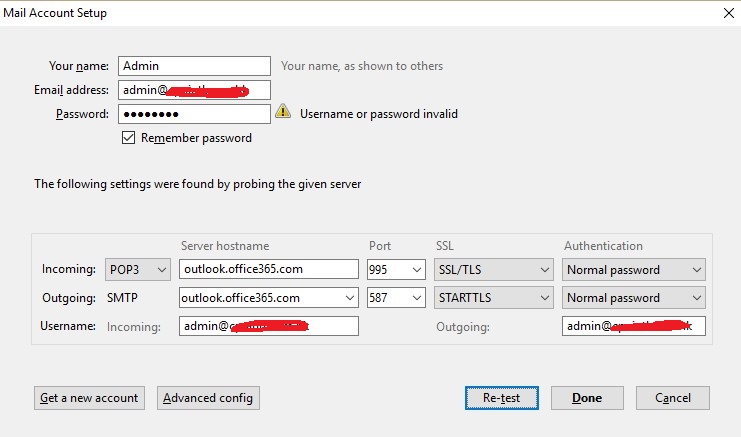
This is sample such as configure Office 365 Pop3/SMTP mode on Thunderbird or Non-support Exchange Mode mail client.
The following problem is i tried before.
Trial / Start Office 365 Exchange Online
Problem :
Always hang on, we're not quite ready when you access the mailbox
First time register the trial Office 365 for your domain, you should using xxxxxx.onmicrosoft.com to setup a mailbox first, once everything is done and you can access the mailbox on web, then you can set your domain as default and create another user account.
I tried if i quick start a trial and setup my company domain as default and i never try access the mailbox on web, Office 365 may be can't create a mailbox for your domain, so should using onmicrosoft.com first.
Always show we are preparing a mailbox for this user
Solution :
Try change xxxxx.onmicrosoft.com is your default domain, access the mailbox then change back your company domain to default.
Mailbox Database and delete the old mail.
Current each mailbox basic is 50GB mailbox, when you delete the mail and empty the deleted item folders, you can free up more space on your mailbox, but all of your deleted item you can recovery on 30 days, that mean even you empty the deleted item, you also can recovery with-in 30day, actually on background each user have 50GB storage for store deleted item. So what's the problem? If background 50GB storage for recovery deleted item is full and no space, all delete the e-mail and empty the folder it will show up again, just like can't delete the mail, this is cause by user delete e-mail over 50GB with-in 30 days, the only way is call Microsoft for temporary increase the background storage or wait few day for reduce the background storage.
Problem :
E-mail come up after delete.
Cause :
User delete e-mail over 50GB with-in 30 days
Solution :
call Microsoft for temporary increase the background storage or wait few day for reduce the background storage.